
$14.99$4.99first month
$10.00 off your first month only
1,499 credits, the full Starter allowance
Unlock My First MonthThen $14.99/month, billed automatically from your second month until you cancel.
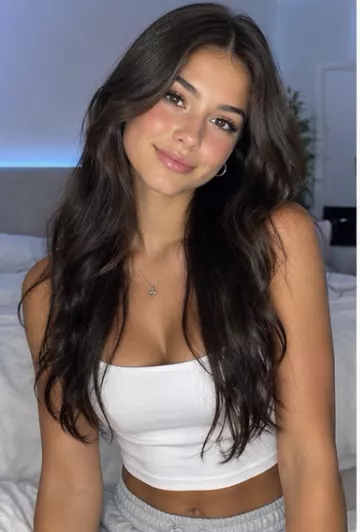
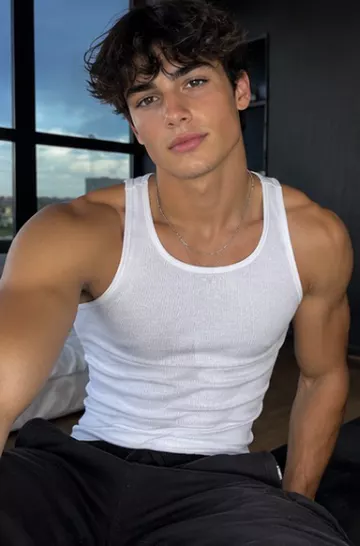
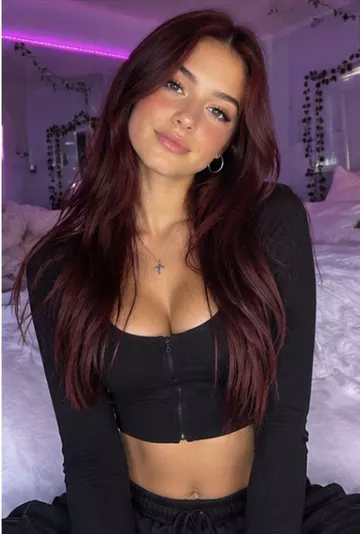
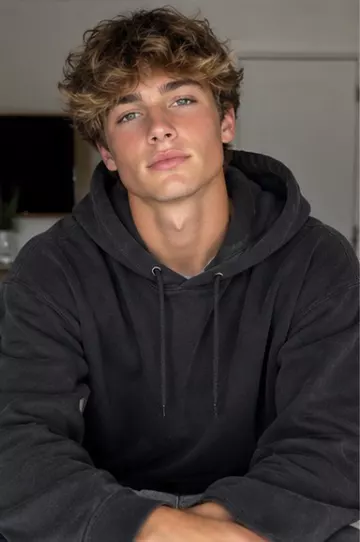
Animate a photo with AI and keep the motion natural: pick a sharp starting image, write a simple prompt and choose Kling O3, Veo 3.1, Sora 2 or Hailuo.
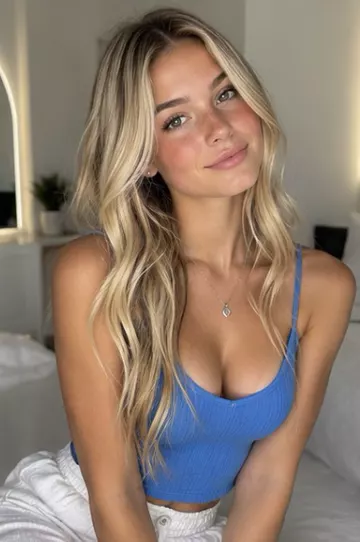
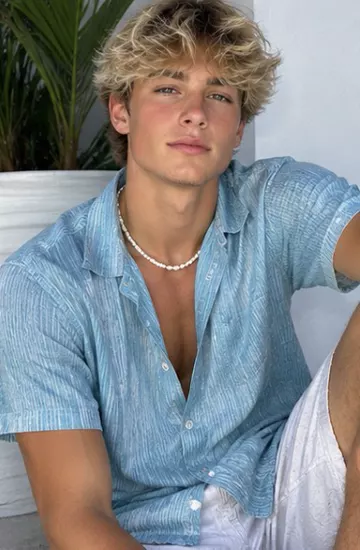
Upload a photo or choose a saved character and describe the motion. Identity-aware models like Kling O3 use the image as a reference so the face, hair and outfit stay consistent from the first frame to the last.
Use it for product shots, portraits, artwork, thumbnails and memes.
An image-to-video model uses your photo as the first frame and invents everything that happens next. Most odd-looking results come from a handful of predictable causes, and most can be improved before you generate.
The photo matters more than any setting. A few minutes spent choosing the right one saves credits on retries.
The photo already shows what the scene looks like, so describe what changes: the action and the camera. For example: “Slow push in. She turns toward the window and smiles, her hair moving gently in the breeze.”
Every generation shows its exact credit price before you start. The price depends on the model, the length and the resolution, and credits are returned automatically if a render fails. To plan a batch, use the AI video cost calculator, or compare plans on the pricing page.
Usually because the starting photo is soft or cluttered, the motion asked for is too big, or the model is not built to hold identity. Use a sharp, well-lit photo, ask for one small action plus a camera move, and try an identity-aware model such as Kling O3. Results vary between runs, so a remix can help.
Start from a clear front-facing image, keep the movement gentle, and use a model that treats your photo as a reference. Saving the person as a character lets you reuse the same reference every time. No model can guarantee an identical face in every run.
Upload the photo, describe the motion you want (for example “she turns and smiles, hair moving in the wind”) and pick a model or let Auto choose. The photo becomes the first frame and the AI animates it.
Yes, on models with native audio such as Google Veo 3.1, Kling 3.0 and Seedance. Turn audio on and describe the sound or add a spoken line.
Identity-aware models like Kling O3 are built to keep the same face and outfit, but results can vary between runs. Remix to try again.
Only with their permission. VidBoss AI's terms forbid impersonation and non-consensual content.
Yes. VidBoss AI (also written Vid Boss AI or VidBoss) is one product at vidbossai.com: an AI video studio for image to video and every other kind of AI video.
Plans start at $14.99 a month with 1,499 credits. Every generation shows its exact credit price before you start, and credits are returned automatically if a render fails.
Your first month of the VidBoss AI video generator at a discount, with the plan's full monthly credits and every model: Kling, Veo, Sora, Seedance and more. Renews at the regular price; cancel any time.
$14.99$4.99first month
$10.00 off your first month only
1,499 credits, the full Starter allowance
Unlock My First MonthThen $14.99/month, billed automatically from your second month until you cancel.
$24.99$8.99first month
$16.00 off your first month only
2,624 credits, the full Pro allowance
Unlock My First MonthThen $24.99/month, billed automatically from your second month until you cancel.
$56.99$17.99first month
$39.00 off your first month only
6,554 credits, the full Business allowance
Unlock My First MonthThen $56.99/month, billed automatically from your second month until you cancel.
Prefer the regular price with no first-month offer? See all plans and credit packs