How to turn a photo into a video
AI photo animation looking strange? Fix drifting faces, bending hands and warping backgrounds, then turn any photo into a natural-looking video, step by step.
What image to video does
Image to video uses your photo as the first frame and invents the motion you describe: a slow camera push, hair moving in the wind, a product turning on a podium. The subject and composition stay the same; the model adds movement, and sound on models that support it.
Why an animated photo can look strange
The model treats your photo as the first frame and invents the rest, so a strange result almost always traces back to the photo, the prompt or the model rather than to anything you did wrong. These are the causes people run into most:
- The face drifts or changes between frames. The model is guessing what the person looks like from other angles. A sharp, front-facing photo and a small amount of movement help, and so does an identity-aware model such as Kling O3. Results vary between runs, so try a remix before changing everything.
- Hands, fingers and held objects bend. These are hard for every model. Choose a photo where the hands are relaxed and separate, and ask for a simple action.
- The motion is too big. A short clip cannot hold a long list of actions. Describe one gentle action and one camera move.
- The background warps or shimmers. Busy backgrounds give the model more to invent. A simple background, or a request for a steady camera, keeps it calmer.
- Lettering or logos in the photo melt. Keep readable text out of the frame and add it later in your editor.
- The photo is low resolution or heavily compressed. Start from the original file rather than a screenshot or a forwarded copy.
Step by step
- Open the Image to Video tool and upload a JPG or PNG.
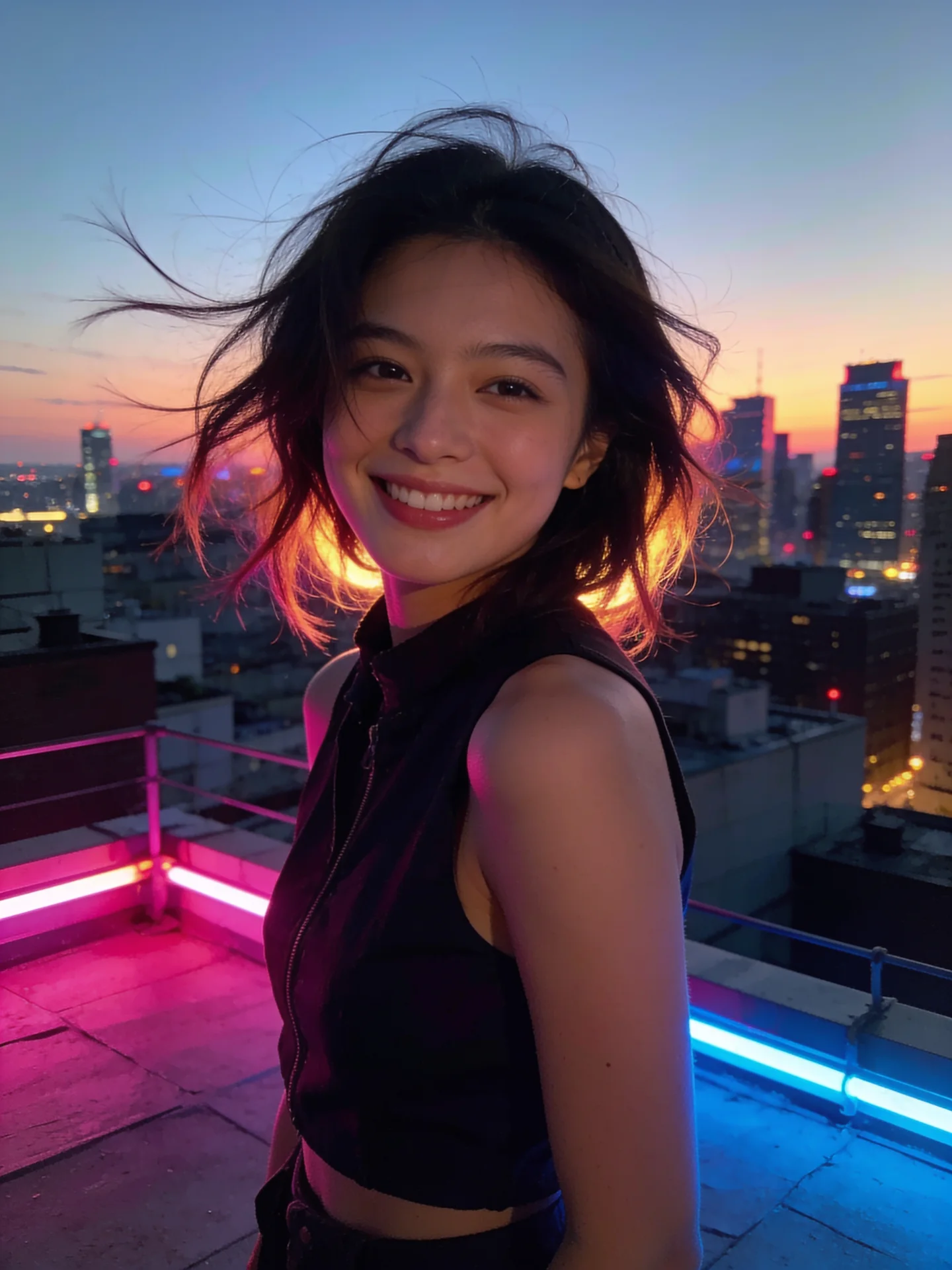
- Describe the motion and the camera, not the picture: "slow push in, she turns and smiles, warm wind".
- Pick a length and model, or leave it on Auto.
- Generate; the price is shown before anything runs.
Prompt tips
- Describe one main action; several actions in a short clip look rushed.
- Name the camera move (push in, orbit, crane up) for a cinematic feel.
- Use a sharp, well-lit photo with the subject clearly visible.
A quick checklist before you generate
- Is the subject sharp, well lit and fully visible?
- Does the prompt describe only what changes (the action and the camera), not what the photo already shows?
- Is there one main action rather than several?
- Is this a person you have permission to animate?
- Did you check the price shown on the Generate button?
At a glance
Limits as set up on VidBoss AI today. The studio always shows the current options for each model.
| Model | Starts from | Length | Resolution | Sound | Best for |
|---|---|---|---|---|---|
| Kling 3.0 Pro · Image to Video Kuaishou | Photo (required) | 3–15 s | 1080p | Optional | Product shots, Character animation |
| Google Veo 3.1 | Text · Photo | 4, 6, 8 s | 720p, 1080p, 4K | Optional | Hero shots, Premium ads |
| Seedance 2.5 ByteDance | Text · Photo | 4–30 s | 720p, 1080p | Optional | Longer stories, Continuous action |
Common questions
How do I make a video from a photo without it looking strange?
Use a sharp, well-lit photo with one clear subject, describe one gentle action and one camera move, and choose a model that holds identity such as Kling O3. If the result is still off, remix it or change the photo rather than adding more instructions.
Why does the face change in my animated photo?
The model has to guess how the person looks while they move. A front-facing, high-quality photo, small movements and an identity-aware model reduce drift, but no model can guarantee the same face in every run.
Can I add sound to an animated photo?
Yes, on models with native audio such as Veo 3.1, Kling 3.0 and Seedance. Turn audio on and describe the sound or the spoken line.