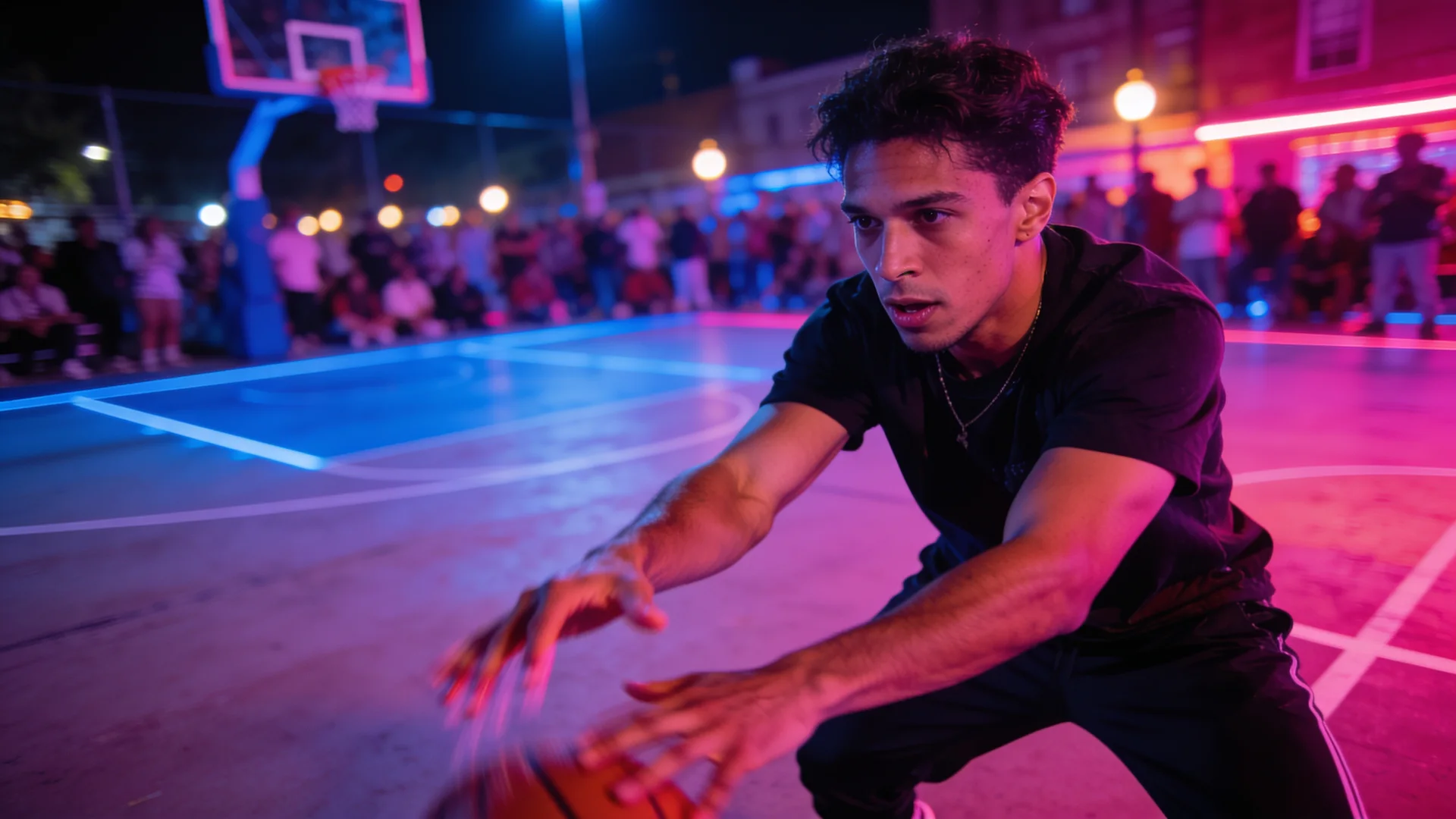
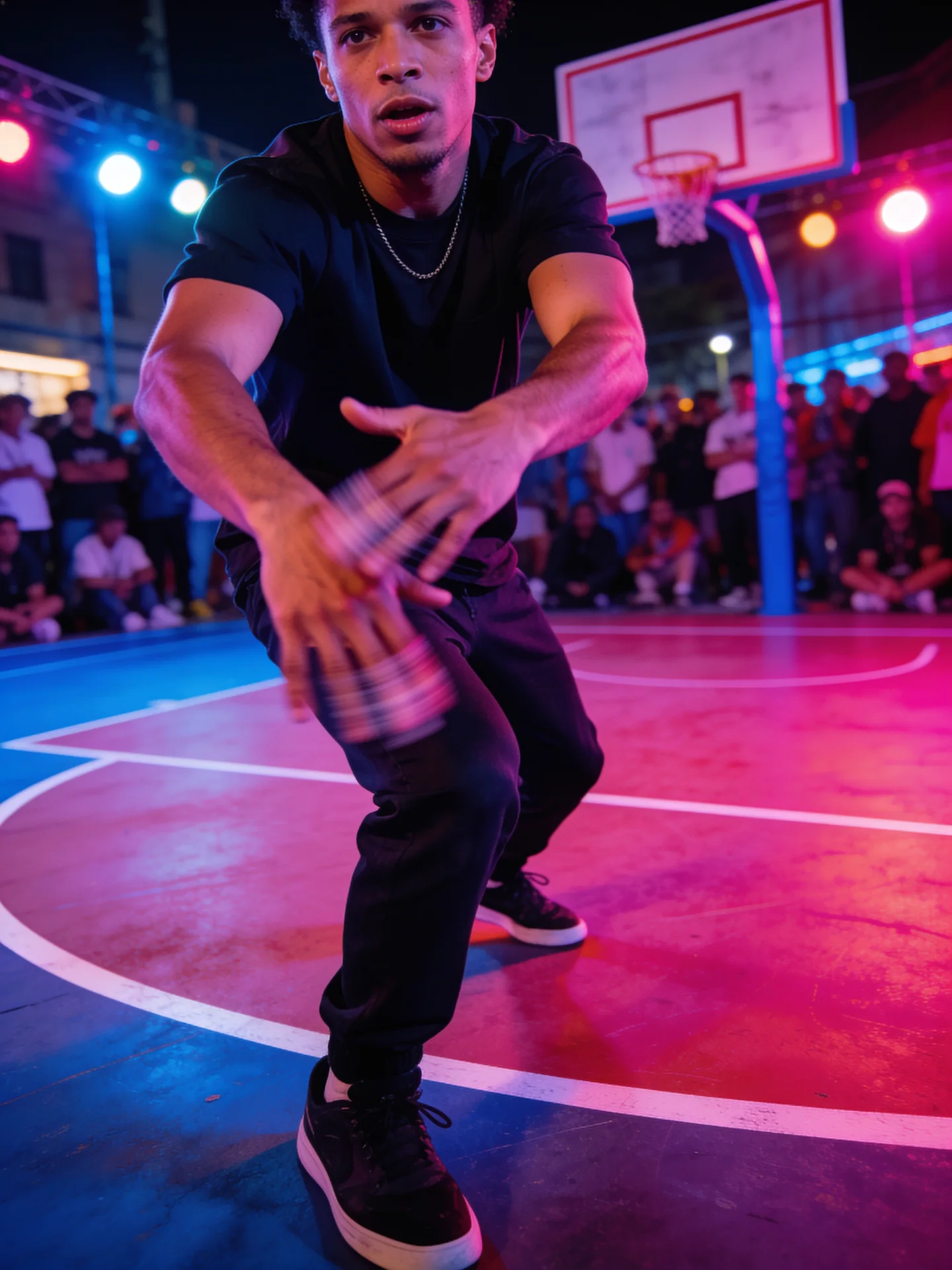
How to make AI TikTok videos
How to make AI TikTok videos: pick a format, write a hook, generate vertical clips with AI, copy trends with your character and post them.
Pick a format that already works
Most AI videos that do well on TikTok follow a format people already recognise: a dance trend, a talking pet, a doorbell-camera surprise, a fake street interview, a glow-up transition or a movie-trailer style scene. Starting from a known format is easier than inventing one.
On VidBoss AI many of these formats are ready-made: Replicate Viral Videos has trending clips to copy with your character, and the Viral formats tools (Viral Social Video, Funny AI Animals, Security Camera Clips, Interview) come with the direction and vertical framing set up.
Write the first second
The first second decides whether people keep watching. Describe it first in your prompt and make it specific.
Vertical 9:16, doorbell camera footage at night, a raccoon carefully carries a pizza box across the porch, looks straight into the camera and freezes, grainy security cam look, locked-off cameraVertical 9:16, extreme close-up of a woman's eye reflecting city lights, camera pulls back fast to reveal her on a rooftop in the rain, neon signs, cinematic lightingGenerate vertical clips
- Open the Studio and choose a tool, or start from a template in Replicate Viral Videos.
- Set the aspect ratio to 9:16 for TikTok (most viral tools start there).
- Keep clips short: most formats work in 5 to 10 seconds.
- Turn on audio when the model supports it, or plan to add the trend's sound in TikTok.
- Check the price on the Generate button, generate, and download from Projects. Failed generations are refunded automatically.
Copy a trend with your own character
For dance and movement trends, pick a clip in Replicate Viral Videos or upload one in Motion Control, then add your character photo. VidBoss starts with PixVerse Person Swap, which keeps the clip's scene, camera and sound and puts your character in place of the person. If it can't make the video, VidBoss automatically tries MiniMax H3 Recast and then the Kling Motion Control models on the credits already reserved (skipping any that would cost more than the price you were shown), and refunds them if every model fails.
For a pet, choose a Kling Motion Control model in the Model setting: it recreates the moves as a new video and works with animals. Save your character once and you can reuse it for every new trend.
Before you post
- Label AI-generated content where TikTok asks you to.
- Only use reference clips, music and likenesses you have the rights to.
- Post the clip natively with the trend's sound and a short caption that matches the hook.
Common questions
What size should an AI TikTok video be?
Vertical 9:16. Most models on VidBoss AI can render 9:16 directly.
Can AI make the voice and sound too?
Yes. Models with native audio such as Google Veo 3.1, Kling 3.0 Pro and OpenAI Sora 2 (beta) generate speech, effects and ambience with the picture. Motion Control keeps the sound of your reference clip.
How long can a trend copy be?
It follows your clip. PixVerse Person Swap accepts clips under 30 seconds, Kling Motion Control 3 to 30 seconds, and MiniMax Recast 5 to 30 seconds with each uncut shot 15 seconds or shorter.