Kling Motion Control: a step-by-step tutorial
How to use Kling Motion Control: pick the right version, prepare your photo and reference clip, and get clean motion transfer for dances and trends.
What Kling Motion Control does
Kling Motion Control takes the movement from a reference video (a dance, a walk, a gesture) and has the character from your photo perform it. The body movement, gestures, timing and camera motion come from the clip; the character comes from your image.
It recreates the performance as a new video rather than editing your original footage, so the background is generated by the model. Because it rebuilds the whole shot around your character, it also works when that character is a pet.
Kling Motion vs. PixVerse Swap and Recast
The Motion Control tool on VidBoss AI can run three kinds of model, and they solve different problems:
- PixVerse Person Swap (720p) and MiniMax H3 Max Recast edit your original clip: the scene, camera, lighting and sound stay, and only the person is replaced. They are built for people.
- Kling Motion Control recreates the moves as a new video with your character. Pick it when you want a new look, or when your character is a dog, a cat or another animal.
- Motion Control starts with PixVerse Person Swap by default. To use Kling, open the Model setting and choose one of the Kling Motion Control models.
Which Kling version to pick
VidBoss AI offers three Kling Motion Control versions. They work the same way and differ in output resolution and price; the table at the end of this guide shows the current limits from the live model registry.
- Kling 3.0 Pro Motion Control: 1080p and the most detail, for posts you care about.
- Kling 3.0 Standard Motion Control (beta): 720p at a lower price, good for testing a trend first.
- Kling 2.6 Standard Motion Control (beta): 720p, the lowest-cost Kling option.
Prepare your two inputs
The quality of the result depends mostly on the inputs. Spend a minute on these before you generate.
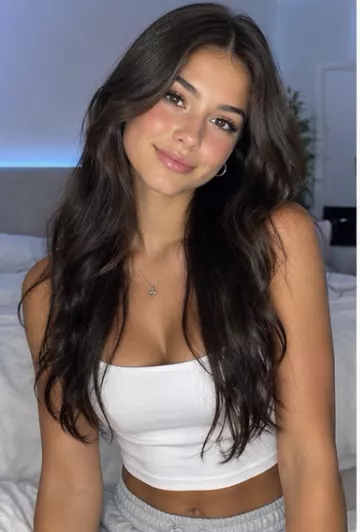
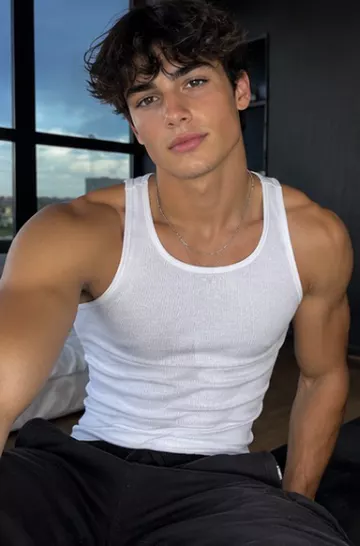
- Character photo: one subject, with head, shoulders and upper body visible and even lighting (JPG or PNG). A framing similar to the dancer's works best.
- Reference clip: one performer, the full movement in frame, a steady camera, 3 to 30 seconds long (MP4, MOV or WebM, up to 50 MB).
- Only use clips and photos you have the rights to use.
Step by step on VidBoss AI
- Open the Studio and choose Motion Control (under Video tools), or pick a trend in Replicate Viral Videos.
- Upload your reference clip as the Source video, or keep the template you picked.
- Upload your character photo, or pick a saved character.
- Open Model and choose Kling 3.0 Pro, Kling 3.0 Standard or Kling 2.6 Motion Control.
- Check the price on the Generate button. It is set by the clip's length and shown before you generate.
- Generate. The finished clip appears in Projects, ready to download.
What to expect
The motion and the soundtrack come from your reference clip, and the clip's length sets the length of the result. The background is generated by the model rather than copied from your clip, and the likeness to your photo is close but not guaranteed, so a clear, well-lit photo matters.
If a generation fails
If the model you chose can't make the video, VidBoss automatically tries the other replicate-a-video models (Kling 3.0 Standard, Kling 2.6, PixVerse Swap and MiniMax Recast) on the credits already reserved, skipping any that would cost more than the price you were shown. You are charged once. If every model fails, the credits are refunded automatically.
Fixing common problems
- Arms or hands look wrong: pick a reference clip where the hands stay in frame and move less quickly.
- Character drifts from your photo: use a sharper, front-facing photo, or a saved character.
- Parts of the body are cut off: match the photo framing (half body or full body) to the reference clip.
- Clip rejected as too short or too long: trim it to between 3 and 30 seconds.
- Movement is messy or the result looks confused: use a reference with one performer, a steady camera and no hard cuts. Several people or a fast-moving camera give the model too much to follow.
At a glance
Limits as set up on VidBoss AI today. The studio always shows the current options for each model.
| Model | Starts from | Length | Resolution | Sound | Best for |
|---|---|---|---|---|---|
| Kling 3.0 Pro Motion Control Kuaishou | Photo (required) · Video | Follows your clip (3–30 s) | 1080p | Keeps your clip's sound | Dance recreation, Trend remakes |
| Kling 3.0 Standard Motion Control Kuaishou | Photo (required) · Video | Follows your clip (3–30 s) | 720p | Keeps your clip's sound | Testing trends cheaply |
| Kling 2.6 Standard Motion Control Kuaishou | Photo (required) · Video | Follows your clip (3–30 s) | 720p | Keeps your clip's sound | Budget tests |
Common questions
How long can a Kling Motion Control video be?
On VidBoss AI the length follows your reference clip, from 3 to 30 seconds.
Does Kling Motion Control keep the original sound?
Yes. The soundtrack from your reference clip is kept, which is what you want for dance trends.
Does it work with pets?
Yes. Kling Motion Control recreates the performance as a new video, so the character can be a dog, a cat or another animal. PixVerse Swap and Recast are built for replacing people in real footage.
Can I use my own face?
Yes. Upload your own photo, or save yourself as a character once and reuse it for every trend.
What happens to my credits if it fails?
VidBoss first tries the other motion models on the same credits. If none of them can make the video, the credits are refunded automatically.